
How to Do a Monthly Business Expense Review (And Why It Gets Easier Every Month)
Monthly expense review in five minutes. Compare this month to last on the Dashboard, spot what's off in the budget vs. actual table, and update targets


A monthly business expense review sounds like homework. In practice, it takes five minutes and gets faster every month, because the data is already there and you know what you're looking at.
For self-employed people who log expenses throughout the month, the review isn't a reconciliation session. It's a reading session. The Dashboard has already done the math. Your job is to check it, compare this month to last, fix anything that looks off, and tell the budget what's coming next month.
Here's what each part of the review actually involves.
Step 1 — Set the month
The first thing to check is cell A3 on the Dashboard tab. This is the month selector, and it controls which month the entire Dashboard displays. If it's set to last month or a future month, everything you're reading is wrong. Set it to the current month before doing anything else.
The Dashboard doesn't generate a report. Every expense logged during the month has already been counted, categorized, and compared against the budget in real time. What you're looking at is current as of the last form submission.
Step 2 — Read the budget vs. actual table
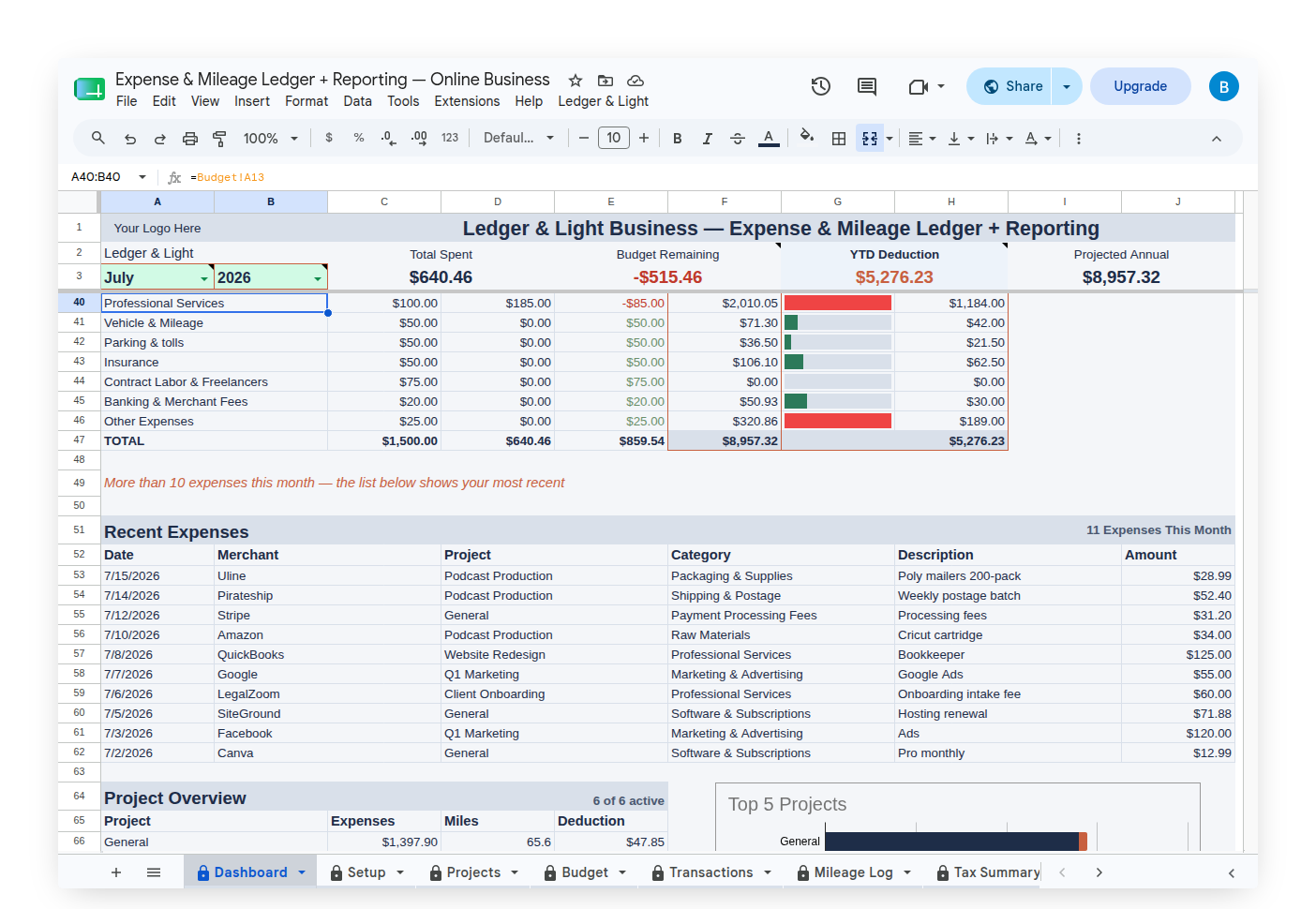
The main table on the Dashboard shows each of the Schedule C expense categories the Expense Ledger covers, with two columns next to each: what you budgeted for the month, and what you actually spent.
This is the scan. Go through the categories and look for anything that jumps out: a category running noticeably over budget, an amount that seems too high or too low, a zero where you expected a number.
A few things worth checking specifically:
- Categories that ran over budget. Was it a one-time event, or the third month in a row? A single overage might be a big job that required extra materials. Three months in a row means the budget number is wrong. It's your actual number, not an outlier.
- Categories that came in under budget. Did you genuinely spend less, or did you forget to log something? A missing receipt from the last week of the month is the most common answer. The Transactions tab will confirm which it is.
- Categories at zero. If you normally spend in a category and it shows zero, something is probably missing.
The variances aren't pass/fail. They're data. Every number that surprises you tells you something about how your business actually runs versus how you expected it to.
Step 3 — Compare with last month
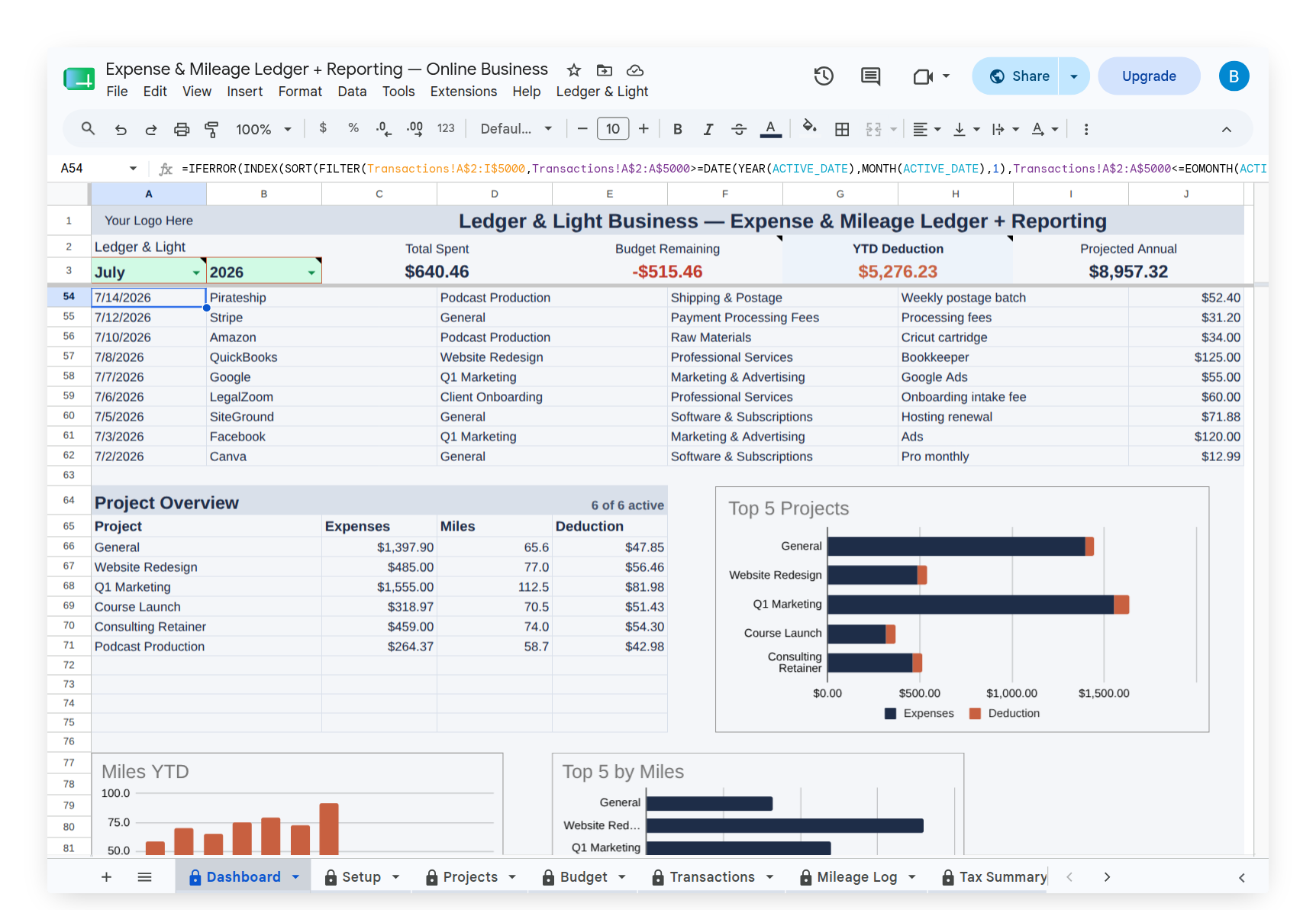
The Monthly Spending chart shows the last 12 months side by side — actual spending as bars, budget target as a line. The current month is the rightmost bar. Compare it to last month: did overall spending jump? Did a category you budgeted for come in flat? The chart gives you the month-over-month read without any extra steps.
Trend sparklines next to each category row give you the same picture at the category level. A category edging upward but staying under budget is worth watching. A spike that returned to flat was probably a real one-time event. The trend line is your confirmation.
Step 4 — Pull the threads
For any category that looked off in the scan, open the Transactions tab and filter to that category. Two minutes of spot-checking here is easier than finding a discrepancy at year-end.
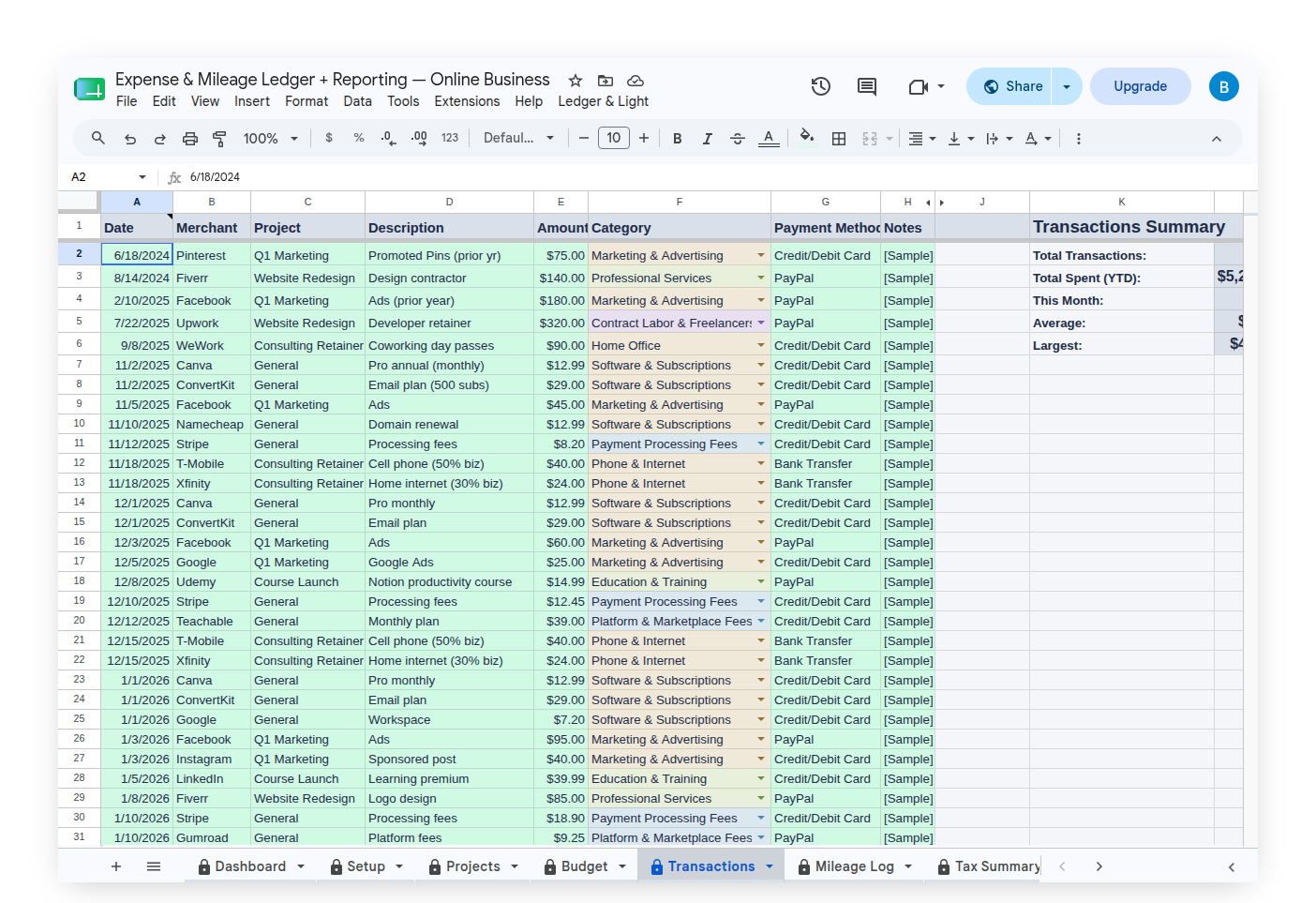
The Transactions tab shows every logged expense in date order, with the category, amount, and any notes attached. A few specific things to look for:
- Miscategorized entries. An office supply purchase that landed in Advertising by accident. Easy to fix now, significant to fix later when the Tax Summary is your CPA handoff document.
- Typos on amounts. A $45 receipt that was entered as $450. The category total won't look right.
- Missing entries. Receipts you remember but don't see in the list. Log them now with the actual date. The Expense Form accepts any date, so a late-October receipt can still be logged in November and will land in the right month on the Tax Summary.
Fix anything that needs fixing. The Monthly Spending chart carries the history automatically — the Transactions tab is the record.
Step 5 — Save the snapshot
When you're ready to adjust your budget for next month, go ahead and make the change. The Monthly Spending chart will still show this month's actual bars even after you've updated the budget targets for next month.
Two ways to archive it:
Print or download manually. File → Download → PDF on the Dashboard tab. Rename it something readable (e.g., Dashboard-Oct-2026) and save it to your business Drive folder.
Tab Export (Expense & Mileage Ledger + Reporting). From your custom Ledger & Light menu, Tab Export saves every visible tab as a PDF to the same Drive folder as the sheet, automatically named by tab, year, and month: Dashboard-2026-10.pdf, Transactions-2026-10.pdf, and so on. Each month gets its own file without overwriting previous months. By year-end, twelve timestamped snapshots sit in Drive alongside the sheet, a complete archive with no manual filing required.
Step 6 — Update the budget
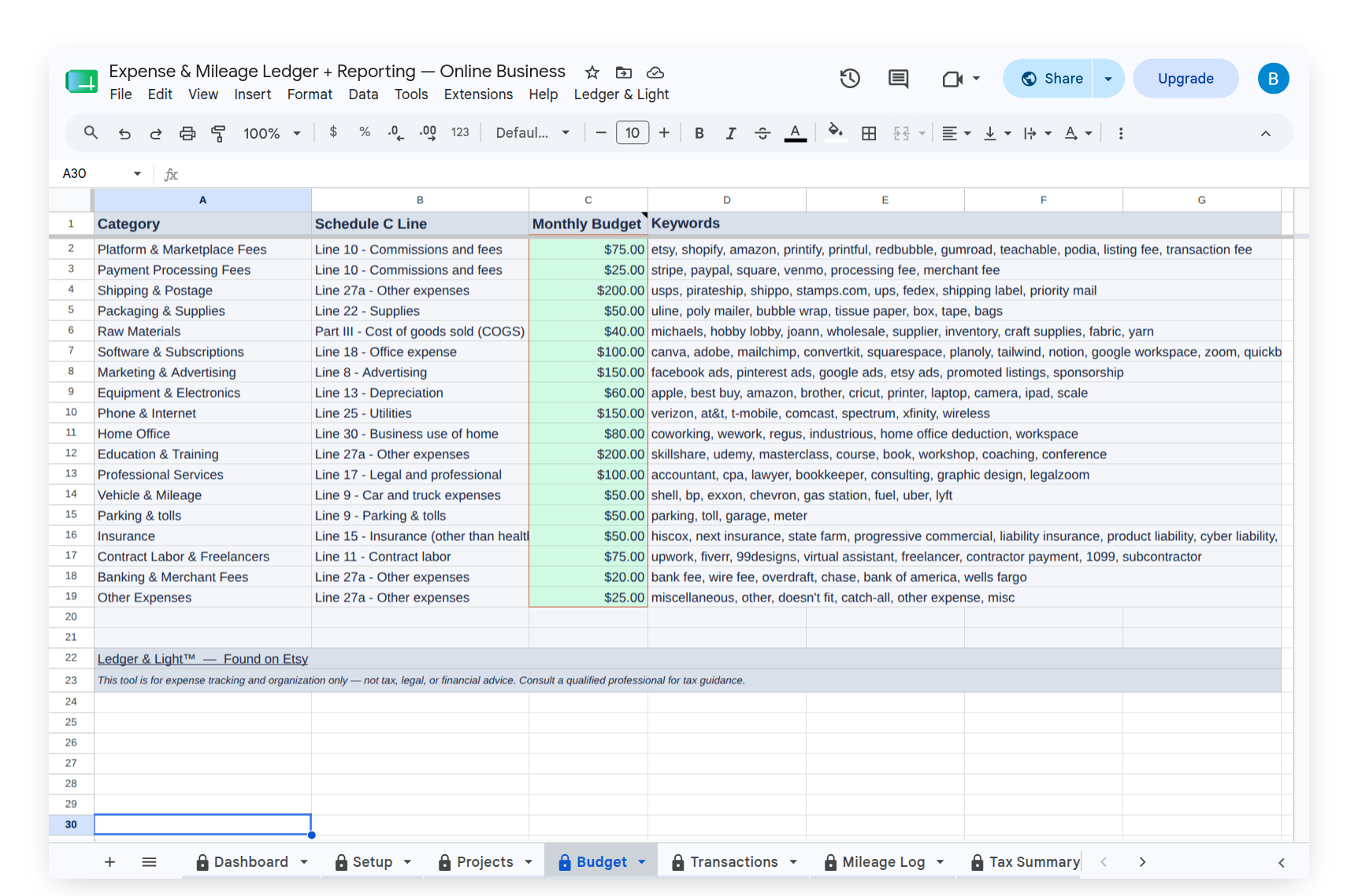
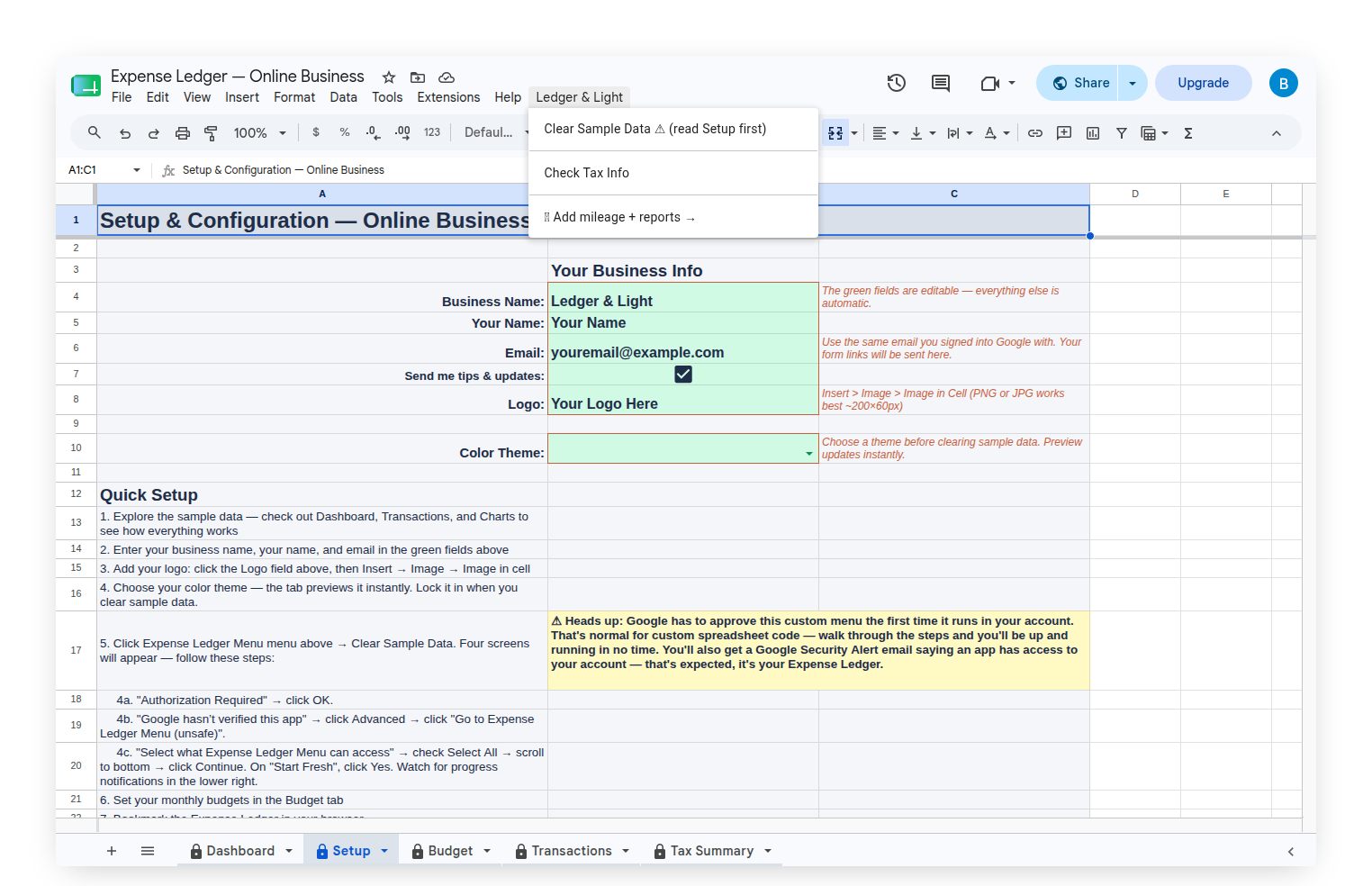
The Budget tab is the last stop. This is where you set the monthly target for each expense category: one number per category, applied every month until you change it.
After the review, update any numbers that the month just taught you something about:
- A category that ran over budget consistently → raise the target to your real number
- An upcoming project, marketing push, or equipment purchase next month → bump the relevant categories now so the variance doesn't surprise you
- A slow period ahead → lower the targets to match what you actually expect to spend
The budget isn't a forecast you're held to. It's the number you're comparing against. If the number is wrong, the comparison is useless. Keeping it current is the whole point.
Set a monthly target per category once. The Dashboard compares actual vs. budget every month, all year. You're not resetting anything in January. The same targets carry forward until you change them, which means the review's job is just to adjust whatever the month just showed you.
What changes over time
The first month-end review is the slowest. You're learning what normal looks like: which categories run close to budget, which ones scale with project volume, which ones you consistently over- or under-estimate.
By month three, you have a baseline. The scan is faster because you recognize your own patterns.
By month six, the budget reflects real numbers. Variances are smaller because the estimates are better, and the ones that remain are genuinely informative.
By the end of year one, the review is a five-minute read of a dashboard that already knows your business. The categories that surprised you in month one don't surprise you anymore. You have twelve months of archived snapshots showing exactly how your spending evolved, a record no app produces automatically. With Expense & Mileage Ledger + Reporting, Email Tax Report sends your Tax Summary, Transactions, and Mileage Log to your accountant as formatted PDFs in one click from your custom Ledger & Light menu, the same menu where Tab Export lives. Twelve months of clean data, handed off without a spreadsheet attachment.
The one-time purchase model means the sheet stays yours for as long as you use it. No subscription reset. No annual data export. The history accumulates, and the monthly review compounds on itself every time you do it. The method doesn't have a lifespan. One purchase, new sheet whenever you need.