
Track Business Expenses with Google Forms: How the Form-to-Sheet Approach Works
A linked Google Form submits directly to a Sheet you own. How the form-to-sheet approach works and why timing is the gap most expense records fail on


If you track business expenses with Google Forms, the architecture behind it is worth understanding, not as a workaround, but as a deliberate system that takes advantage of tools most people already have.
The gap that causes most expense logging systems to fail isn't organization. It's timing. An expense logged at the moment it happens is a complete record. An expense logged three days later from a receipt (if you kept the receipt) is a reconstruction. Records built from reconstructions have gaps.
A linked Google Form closes that gap at the point of purchase. Not at the desk. Not at the end of the week.
How a linked Google Form works
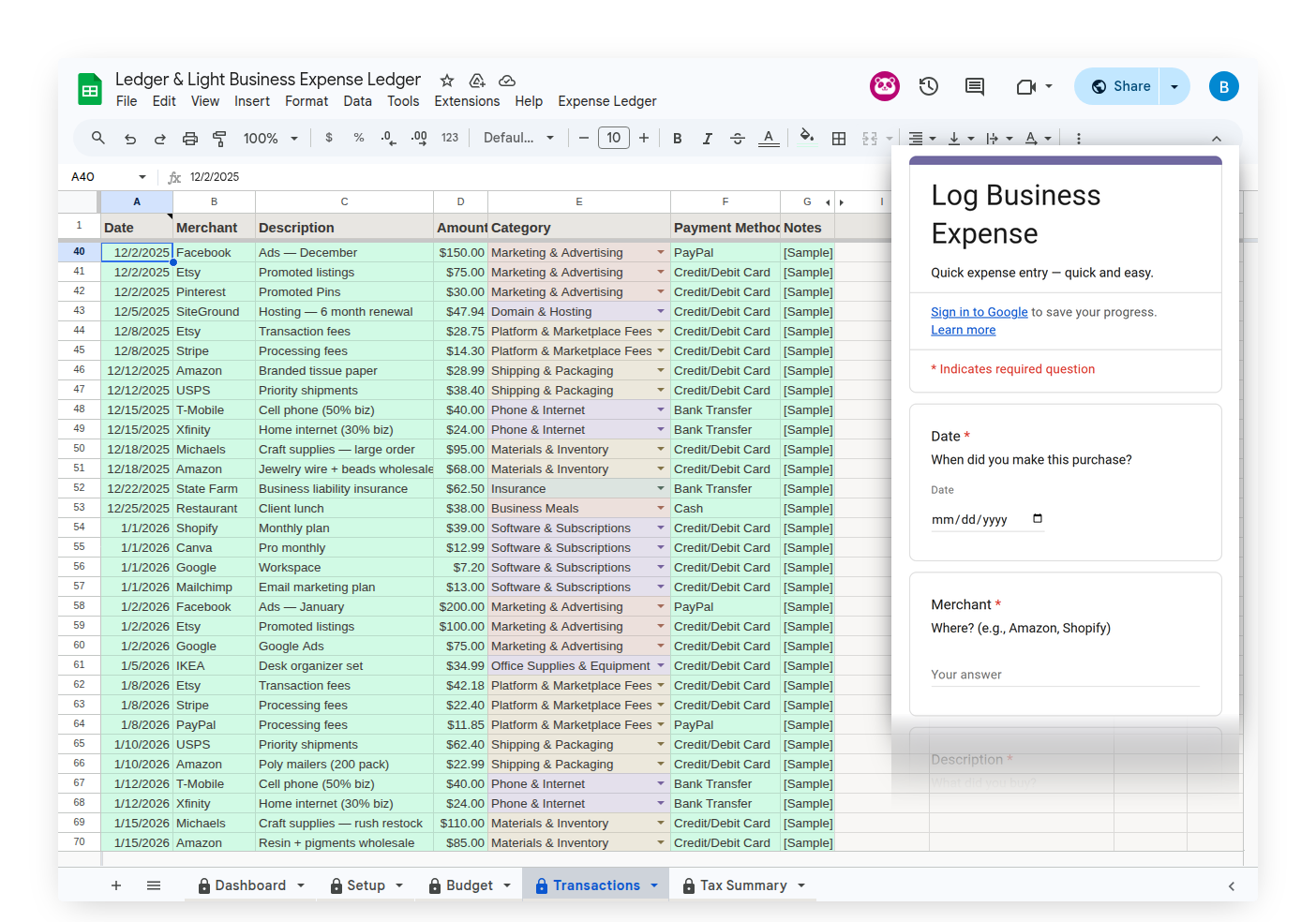
A Google Form can be linked to a Google Sheet so that every submission flows directly into a spreadsheet in your Google Drive. No manual copy-paste. No import step. Submit the form and the entry appears in the Sheet instantly.
The form lives on your phone as a browser shortcut — no app to download or log into. Fill in the relevant fields, submit, and the record exists. The entry in the Sheet is created from what was entered at the moment of the expense, not assembled later from partial memory.
The data ownership difference
Most expense tracking apps store your data on their servers. Your records live in their system. If you stop paying, or the service closes, you need to export before your access ends.
The form-to-sheet approach inverts this. Submissions go directly into a Google Sheet in your own Google Drive. The file belongs to your account. It's there whether you use the product for one year or ten — no subscription renewal, no export window before access closes. Google Forms and Google Sheets have been the backbone of business data management for over a decade. The infrastructure isn't a startup's product. It's the same Google infrastructure you already use for everything else.
What the form should capture
The usefulness of a linked form depends on what it asks for. For expense logging, the fields that matter for a Schedule C return are: date, vendor, amount, expense category, and payment method. Matching categories to IRS Schedule C line items from the start means the records and the return speak the same language without a translation step.
A receipt photo field adds a second layer: snap the receipt before you pocket it, attach it to the submission, and the photo lives in your Drive alongside the log entry. Google gives a setup script no way to create a file-upload question, so this is the one field that goes onto the form by hand, and the Expense Ledger setup guide walks through adding it.
Expense Ledger and Mileage Ledger
Ledger & Light's products are built on this architecture. Expense Ledger uses an Expense Form linked to a Google Sheet. Expense categories map directly to the Schedule C expense categories that apply to most solo freelancers and self-employed business owners. The Tax Summary tab shows totals by category in the exact structure a Schedule C return requires. Expense & Mileage Ledger and Expense & Mileage Ledger + Reporting add a Mileage Log — same form-to-sheet architecture, useful if you want mileage and expense records in a single file.
Mileage Ledger uses the same form-to-sheet architecture for business mileage. The Mileage Form captures date, destination, business purpose, and odometer start and end. The Mileage Log calculates the IRS deduction per trip at the current rate. Same approach, different focused problem.
Both products are one-time purchases. The file you set up today is the file you're using in year five, updated when you choose, unchanged when you don't.